



Wallet setup
Connecting a Solana wallet, what the SOL in it pays for, and what auto-confirm gives up.
Velocity is self-custodial, so there is no account to register and no balance held on a trader's behalf. A Solana wallet connects to the app, and every deposit, order, borrow and withdrawal is a transaction that wallet signs. The keys never leave it, which also means nobody at Velocity can move those funds, recover a lost seed phrase, or reverse a transaction that has already been signed.
Phantom, Backpack and Solflare all connect and all work the same way. The walkthrough below uses Phantom because the auto-confirm setting at the end of this page lives in Phantom's connected-apps menu; the connect, deposit and withdraw steps are identical in the other two.
Keys held on a hardware wallet need Delegated accounts first, because a hardware wallet cannot sign every payload the order path uses. For a bot rather than manual trading, Trading automation covers the bot wallet instead.
What the SOL in the wallet pays for
A small SOL balance is required even for an account that never trades SOL, and it covers two separate costs.
The first is the Solana network fee on every transaction sent: a base fee of 5,000 lamports plus whatever priority fee the wallet attaches to get the transaction landed. That is consumed and does not come back.
The second is rent, which is not a fee. A Velocity subaccount is an onchain account, and Solana requires an account to hold a SOL balance proportional to its size in order to stay allocated. That balance is a deposit: it sits with the account for as long as the account exists, and deleting the subaccount returns it in full to the wallet that paid it. Withdraw and close an account covers the conditions a subaccount has to meet before it can be deleted.
Connecting and depositing
Install the browser extension
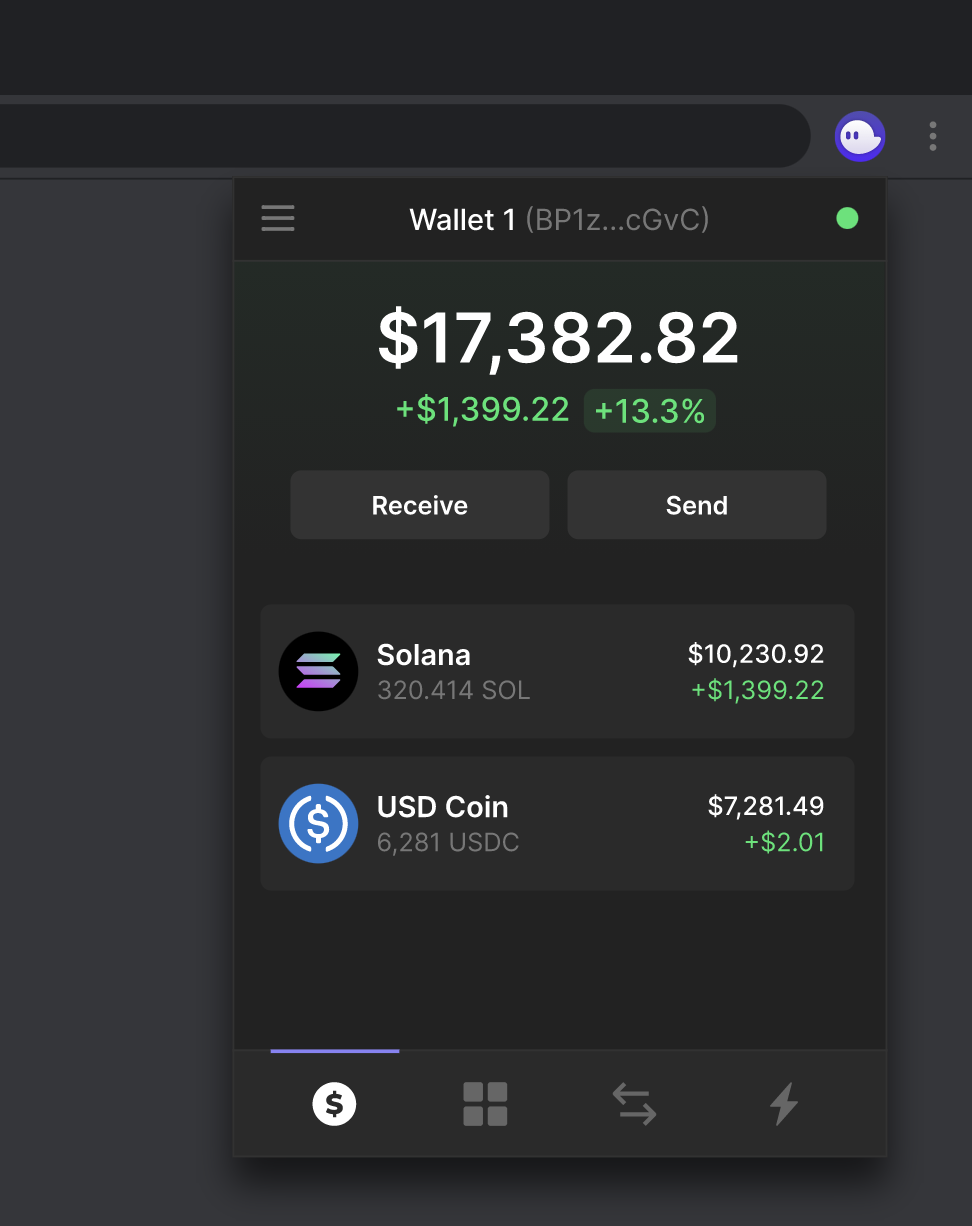
Install Phantom in Chrome, Brave, Firefox or Edge, then create a new wallet or import an existing seed phrase. Write the seed phrase down offline before you fund anything, because it is the only recovery path that exists.
Fund your wallet
Your wallet needs SOL for network fees and rent, plus whatever asset you intend to post as collateral. Buy SOL on an exchange and withdraw it to the Phantom address, or swap into it inside Phantom or on Jupiter.
Which assets count as cross-collateral is a per-market setting: an asset is usable as collateral while its spot market is listed and carries a non-zero collateral weight, and that weight is what it counts for against margin. Collateral and margin covers the weights and where to read the live list.
Connect your wallet
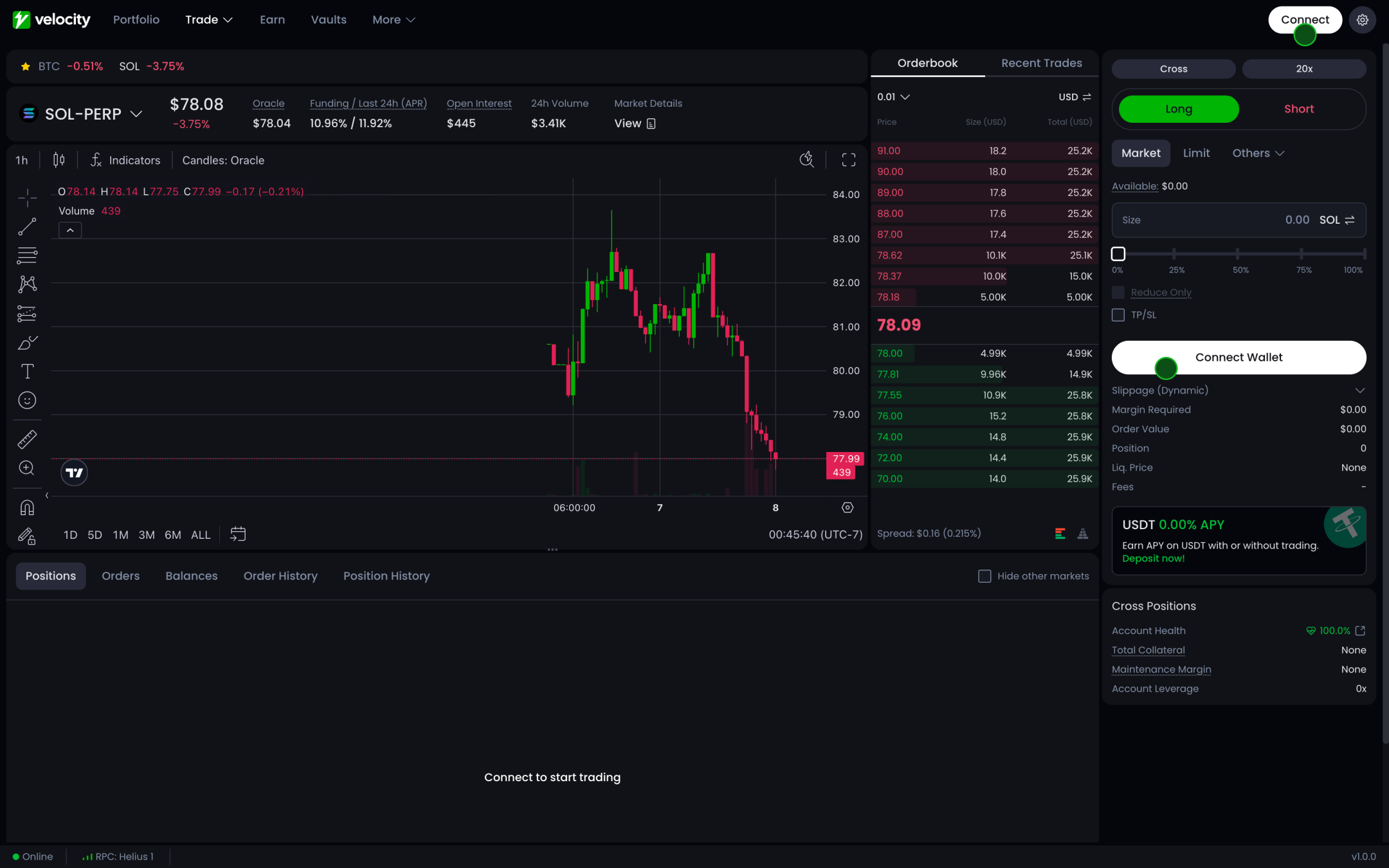
Open the trading page and select "Connect Wallet" at the top right. Velocity has no login, so this is the whole of signing in.
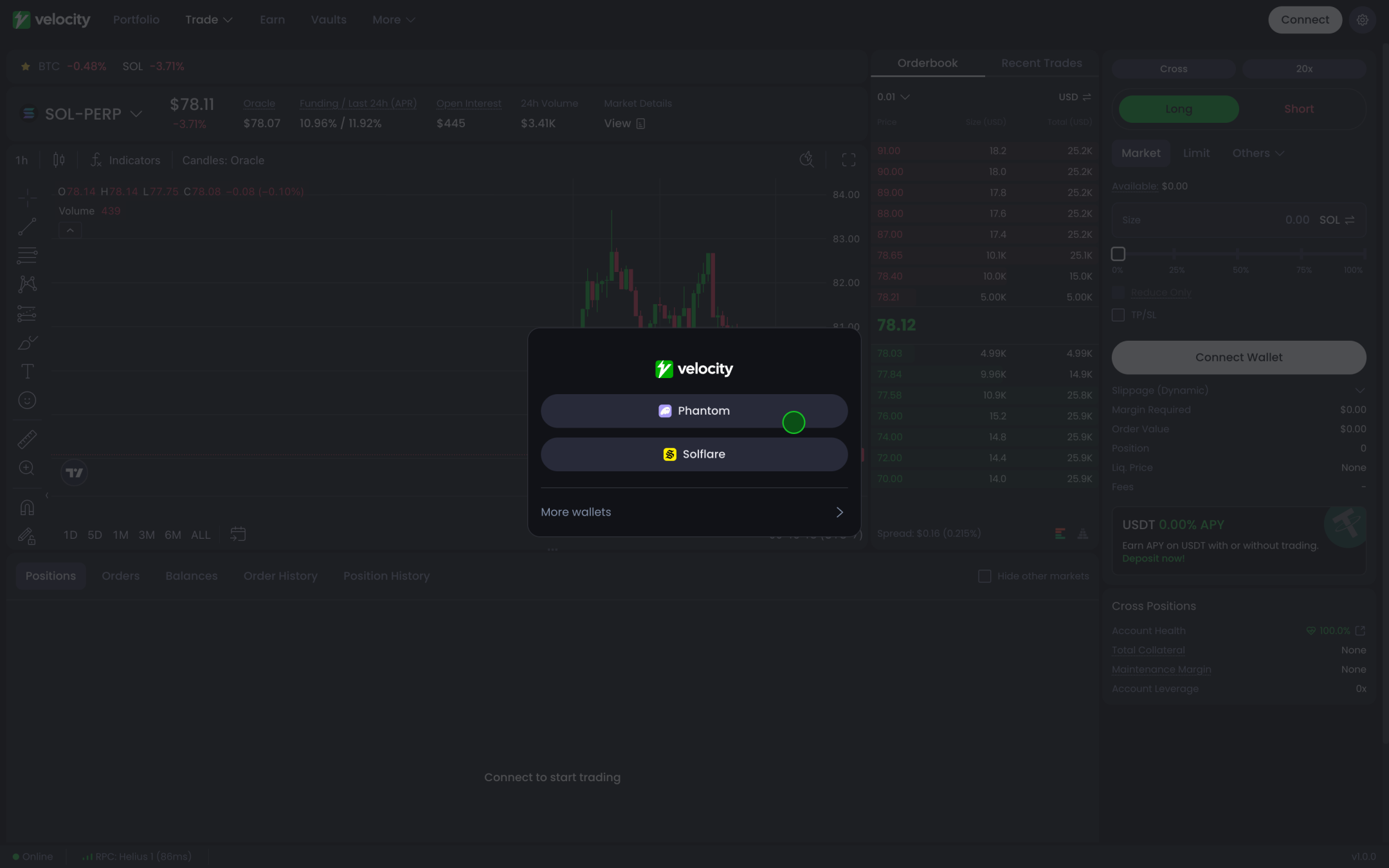
Choose Phantom and approve the connection in the wallet popup. Connecting only lets the site read your address and propose transactions to you; it does not authorize any transfer on its own.
Deposit
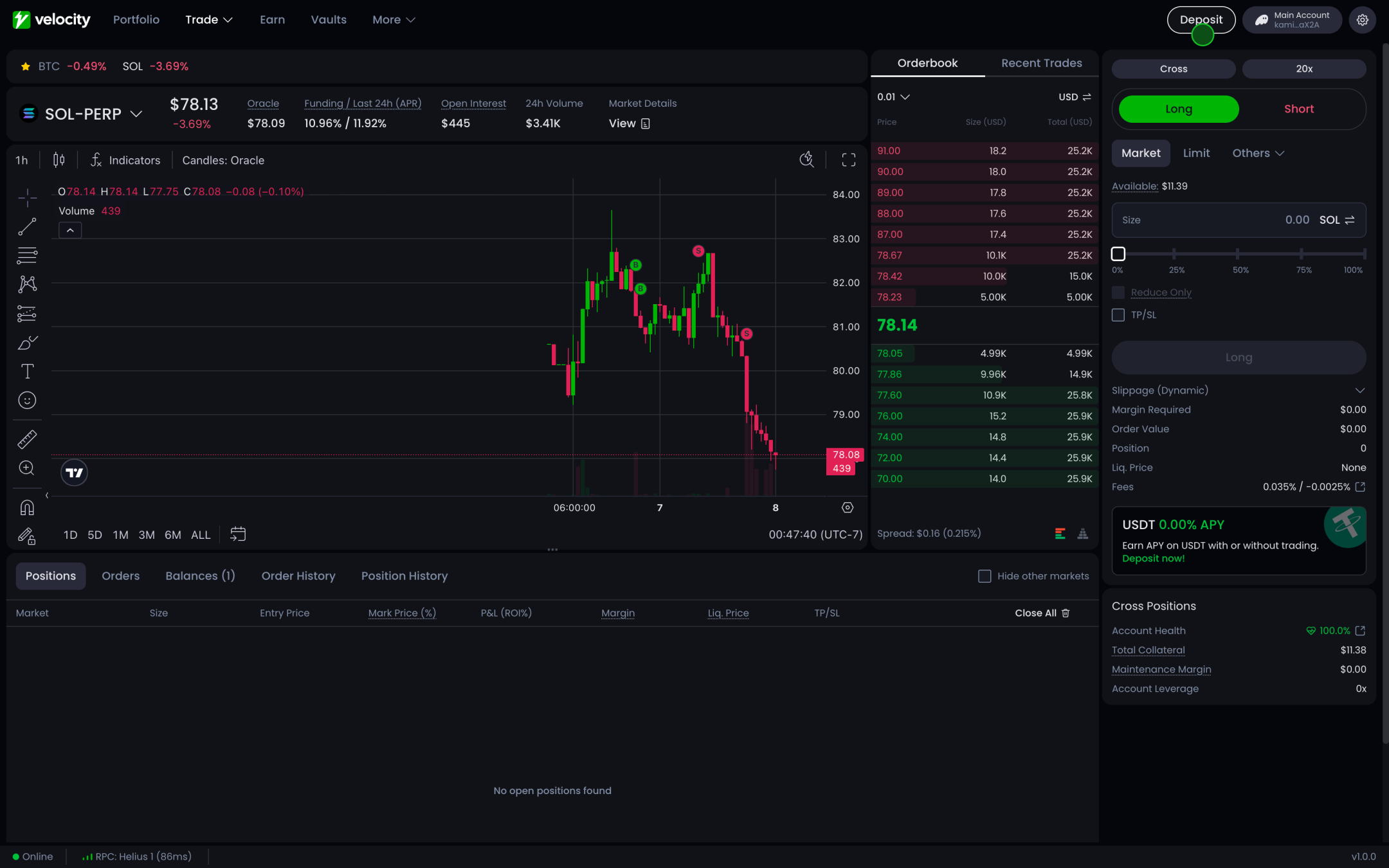
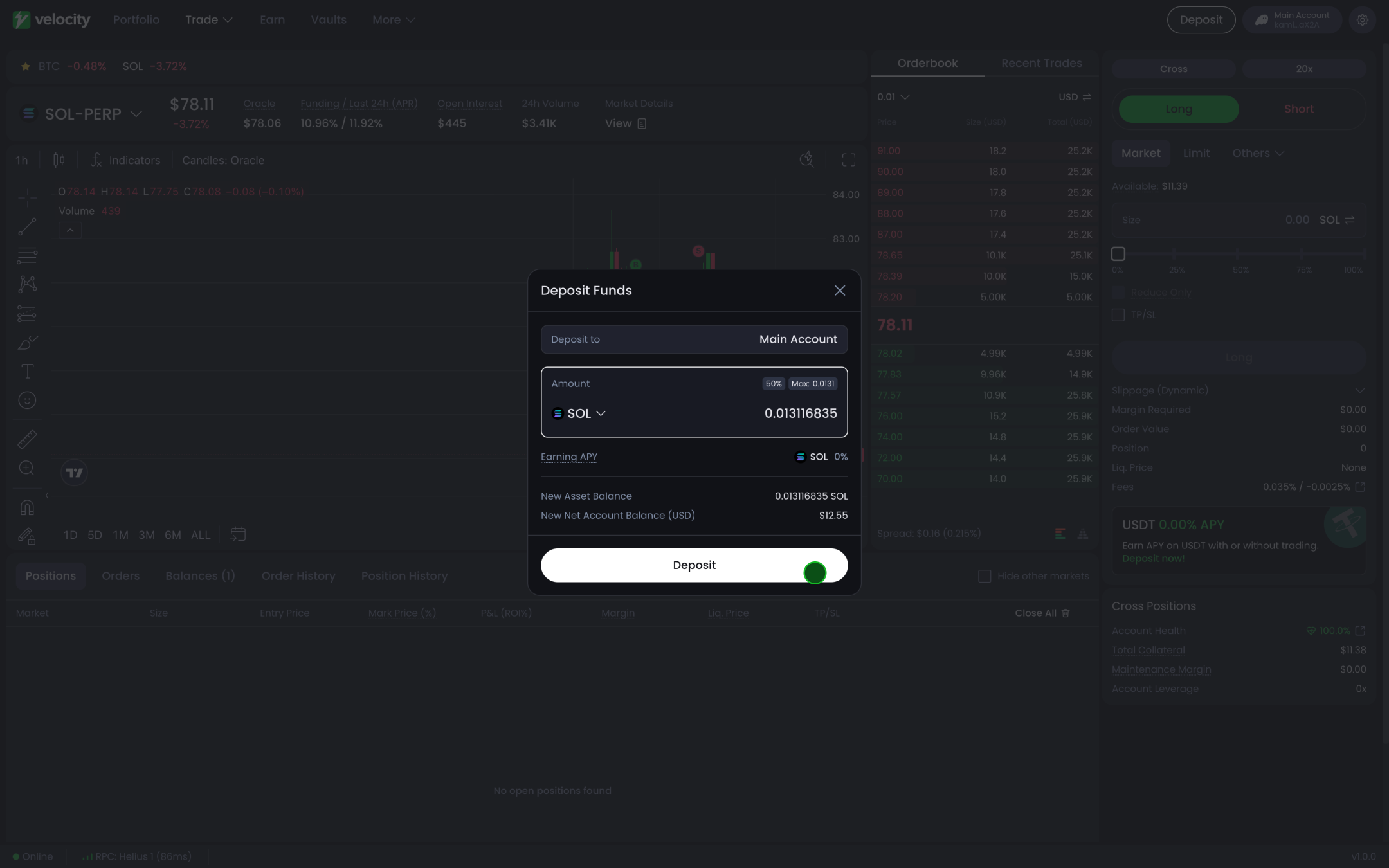
Click "Deposit" next to the button you connected with, pick the asset from the dropdown, and enter an amount. The dropdown is how you deposit something other than USDT.
Click "Deposit" and sign the transaction in your wallet. Your first deposit also creates the subaccount, so it costs the rent deposit described above on top of the network fee.
Withdraw
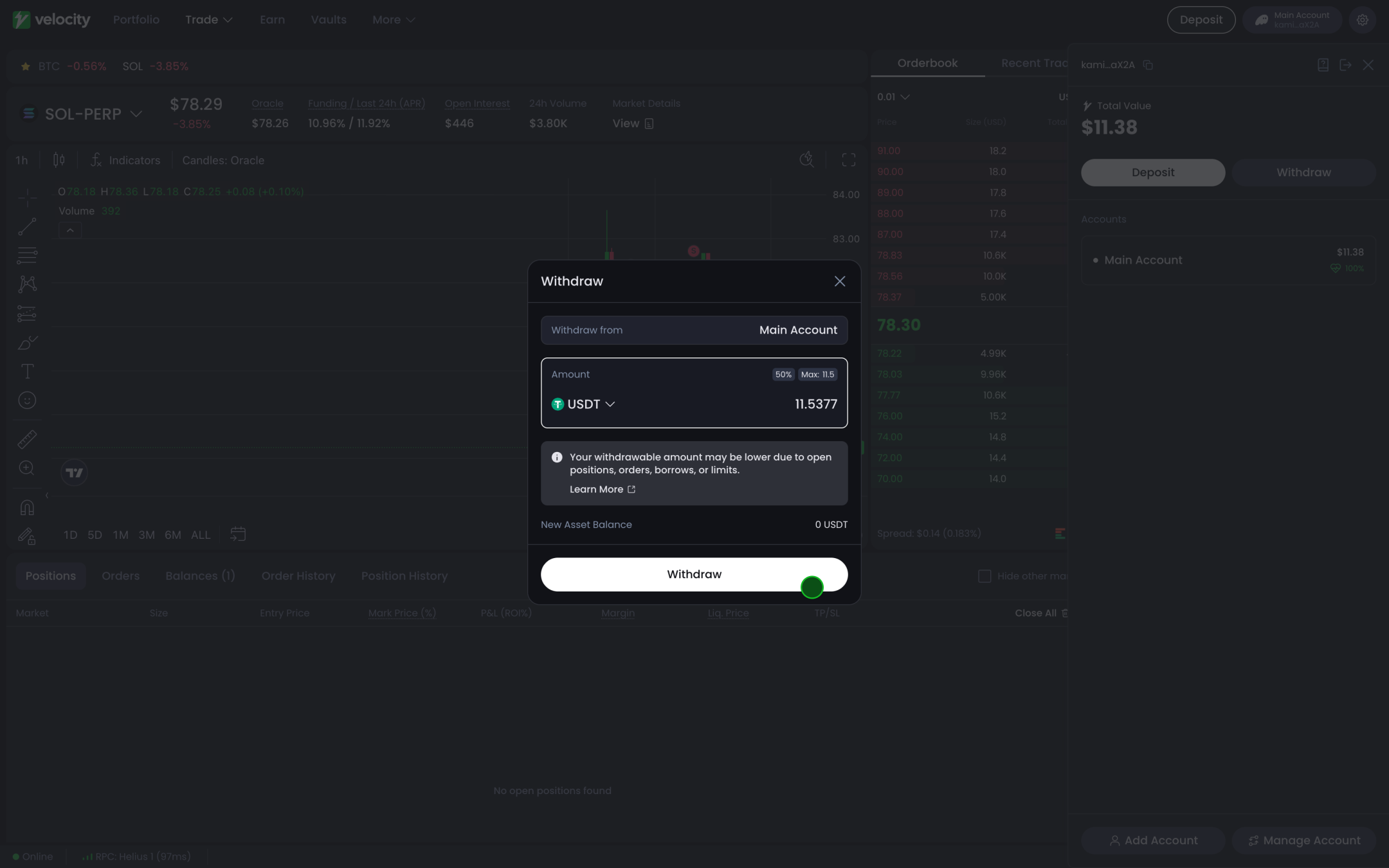
To take collateral back out, select "Withdraw" in the same window you deposited from. It is the same modal, on the other tab.
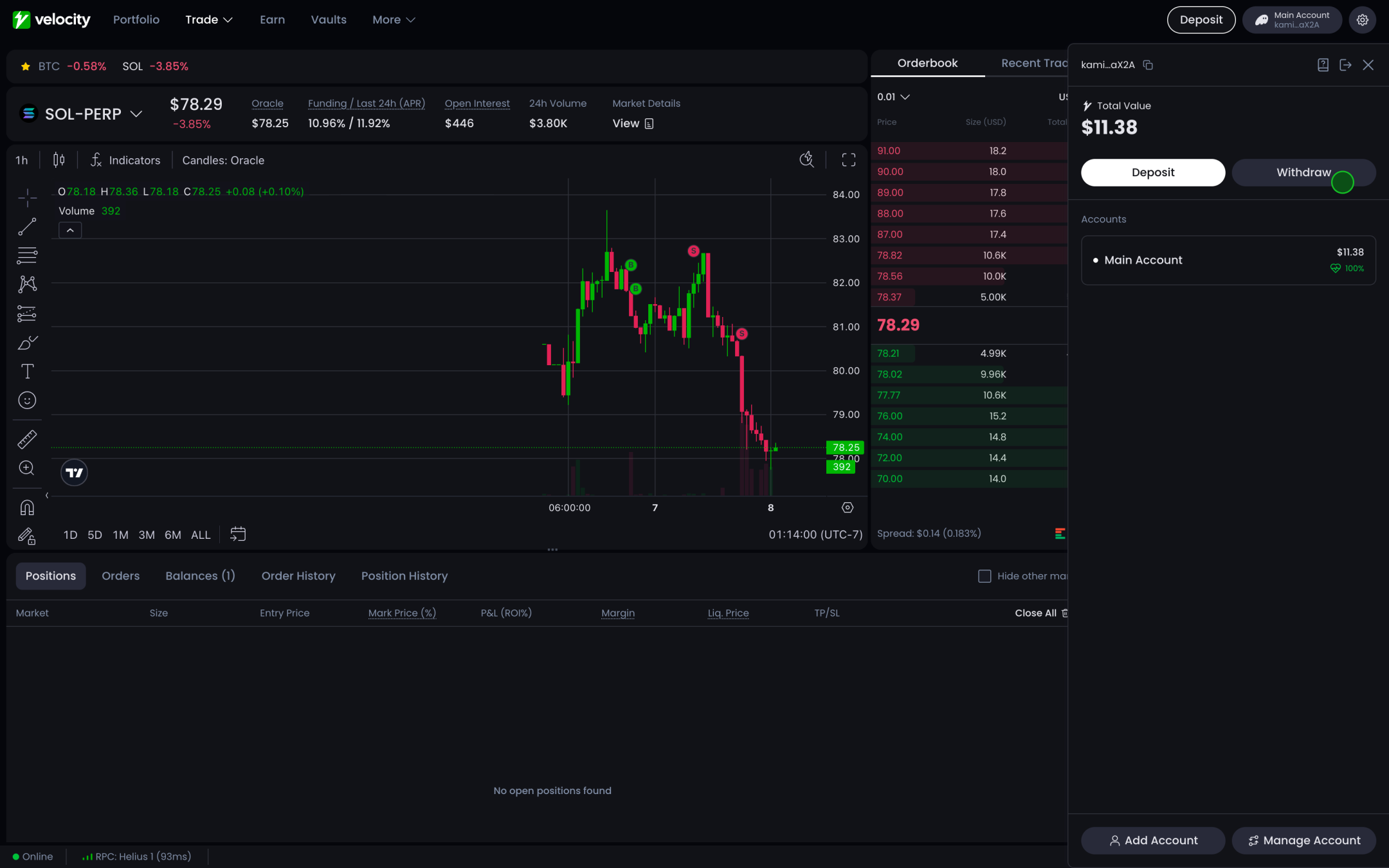
Enter the amount and confirm the transaction. You can withdraw while positions are open as long as the account stays above its initial margin requirement, and a market's rolling limits can throttle a large withdrawal independently of the account's own margin.
Auto-confirm, and what it gives up
Phantom's auto-confirm setting tells the wallet to sign transactions from one connected site without showing the approval popup. Deposits, orders, borrows and withdrawals then go through in a single click, which matters most while orders are being managed actively.
The approval prompt is the last point at which a transaction can be read and refused before it is signed, and auto-confirm removes exactly that. The site is approved once, in advance, instead of each transaction being approved as it is proposed. The grant is scoped to the one connected app and is revoked from the same menu, so enabling it for a session of active trading and disabling it afterwards keeps the exposure to that session.
A first trade, end to end
One account, one position, from deposit to withdrawal, with a $10,000 account and SOL at $100. The thread that connects the pages that own each mechanism.
Managing subaccounts
The fixed slot counts every subaccount has, what occupies one, and how to add, fund, switch and delete them.